GPT and AI assistants
Your boards in ChatGPT, Claude and Cursor.
Ask your AI assistant where a project stands, or let it create and move cards. The connection runs over MCP and is included in every plan.
- ChatGPT
- Claude
- Claude Code
- Cursor
- VS Code
What the assistant does
You say what needs doing. The assistant works on the board.
Create cards
Meeting notes, an email or a quick note become cards in the right list.
“Create a card for every item in these meeting notes.”
Move and complete
The assistant moves cards, completes them and writes comments.
“Move all the flyer cards to Done.”
Standup
A ready-made prompt sums up what is done, what is next and what is stuck.
“Give me the standup for the Team Board.”
Plan for the week
A prompt plans the week from due dates and open cards.
“What is coming up this week?”
Triage
A prompt finds stale, overdue and blocked cards.
“Which cards are overdue or blocked?”
Manage boards
The assistant can also manage boards, subpages and members.
“Create a subpage for the client.”
Setup
Connected in three steps.
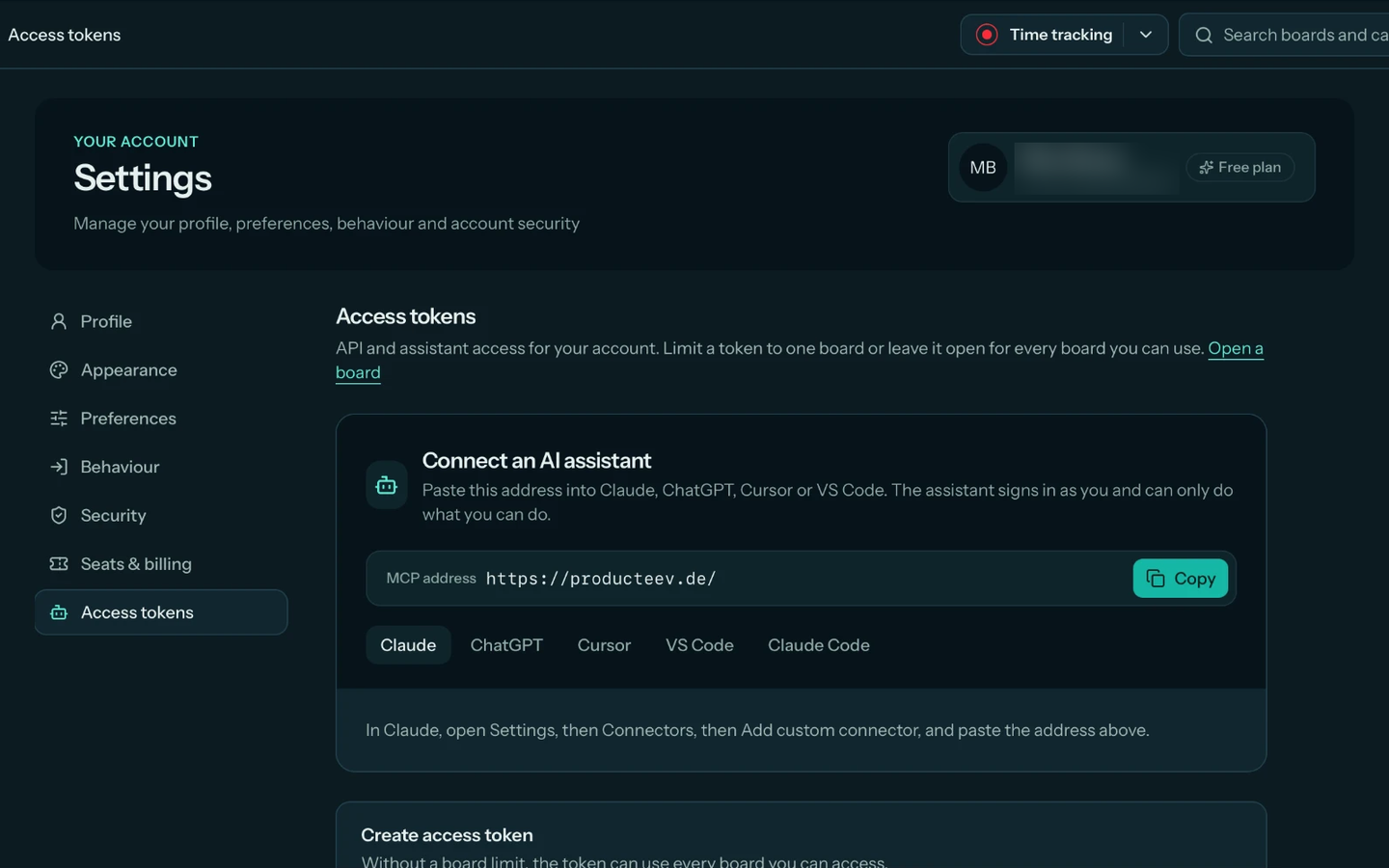
All you need is the MCP address. You find it in producteev.de under Settings → Access tokens, and it is the same for everyone.
- 1In producteev.de, open Settings → Access tokens.
- 2Copy the MCP address.
- 3Paste the address into your assistant and sign in to producteev.de.
https://producteev.de/app/mcp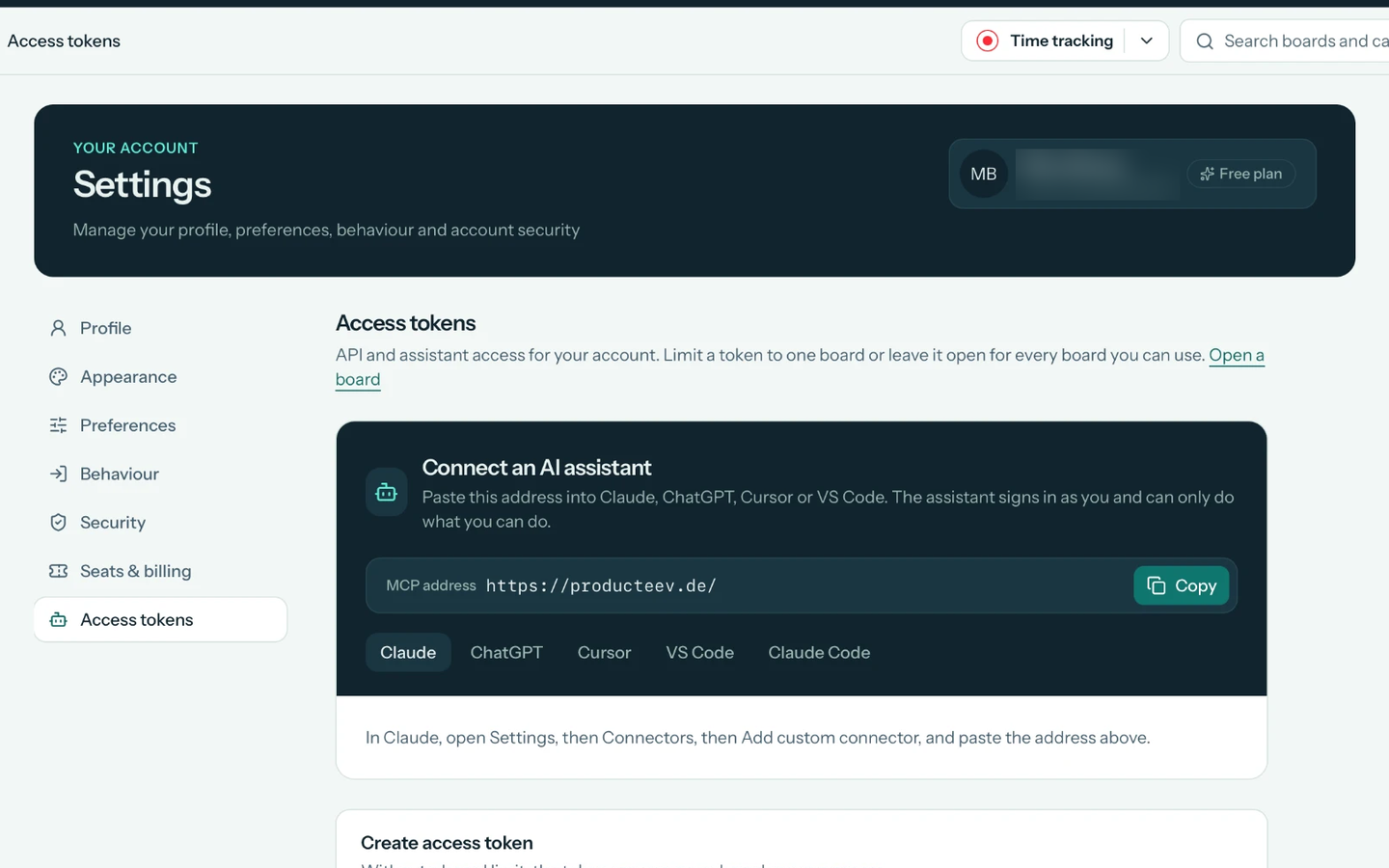
Guides
How to connect your assistant.
The first time, you sign in to producteev.de and approve the connection.
ChatGPT
- 1.In ChatGPT, open Settings and then Apps & Connectors.
- 2.Under Advanced, turn on developer mode.
- 3.Create a new connector and paste the MCP address.
OpenAI decides which ChatGPT plans allow custom connectors.
Claude
- 1.In Claude, open Settings and then Connectors.
- 2.Choose Add custom connector.
- 3.Paste the MCP address.
Claude Code
Run this command in your terminal:
claude mcp add --transport http producteev https://producteev.de/app/mcpCursor
Add the server to Cursor’s mcp.json file:
{
  "mcpServers": {
    "producteev": {
      "url": "https://producteev.de/app/mcp"
    }
  }
}
VS Code
Add the server to your project’s .vscode/mcp.json file:
{
  "servers": {
    "producteev": {
      "type": "http",
      "url": "https://producteev.de/app/mcp"
    }
  }
}
Security
The assistant never sees more than you do.
No account of its own
The assistant signs in as you and can only do what you can do.
Easy to follow
When the assistant changes something, its name appears next to yours in the history.
Deleting asks first
Tools that delete something ask before they do.
Clear limits
Backups, notification settings, account security, API tokens and the admin area are out of the assistant’s reach.
Included in every plan, including the free one.
Free forever for up to ten people per board. No credit card and no time-limited trial.